
Thread
How to test a Mac II PSU
I have a Macintosh II PSU not delivering any voltage, is any way to test is ?
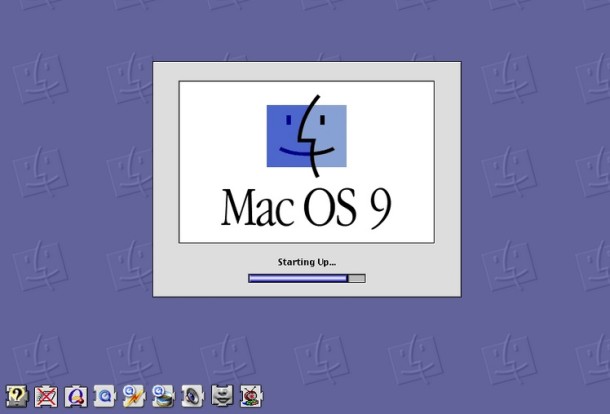
#1- A Mac Os 9 capable computer.
#2- An HFS volume with Mac Os 9 drivers.
#3- A Mac Os 9 System folder.
Notes:
#1- All g3 and most of G4 are Mac Os 9 capable computers. This can be checked at http://www.everymac.com/. Furthermore, some of unsupported Macs can be booted via special procedures ...
#2- An HFS volume can be a Hard Disk, a CD-ROM or an external device connected via USB (including pendrives), Firewire or eSATA.
Drive Setup (in Mac Os 9) and Disk Utility (in Os X) can format HFS+ devices with Mac Os 9 drivers. Gparted (Linux) can create HFS volumes but without Mac Os 9 drives, so aren't bootables.
#3- In the Mac Os 9 system folder, the Mac Os ROM, System and Finder files are the ONLY files needed to boot (well, the Finder isn't really necessary to boot, in fact it can be changed for any other app), the remaining files and folders are optionals and can be fully wiped for troubleshooting procedures.
The System and ROM versions should be the same or later versions from the ones that the computer come with.
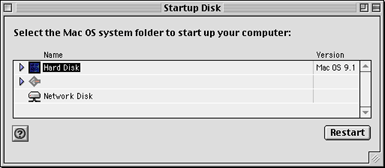
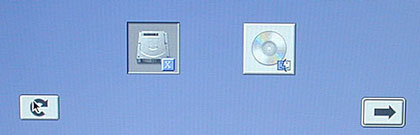
The Startup folder should be selected in the Startup Disk control panel:
Thanks,
I just have the PSU, sending voltage between the white and black wire should work also ?
Any Capacitor related problem known ?
I just have the PSU, sending voltage between the white and black wire should work also ?
Any Capacitor related problem known ?
generally they are not leaking in the psu… the big issue is the II and Iix mainboard's and trace rot.
Ok, thanks.
Depends on the II motherboard, the first ones used solid caps. If you are lucky to have one no worries. Later revisions switched to the leaky tin trash can caps.
I am not the owner, will ask, but probably should get the whole macintosh for a test.
Network related extensions:
Apple Enet 2.4.5, AppleShare 3.9.4, Open Transport 2.8.3, Open Transport ASLM Modules 2.8.3, Shared Library Manager PPC 2.0.2, Internet Config Extension 2.0.7
USB/FireWire related extensions:
FireWire Enabler 2.8.7, FireWire Support 2.8.7, HID Library 1.5.9, USB Device Extension 1.5.9
QuickTime And Sound Manager related extensions:
Apple Audio Extension 2.4, Sound Manager 3.7.1, QuickTime Extensions, QuickTime 6.0.3, QuickTime Musical Instruments 6.0.2, QuickTime PowerPlug 6.0.3
OpenG related extensions:
OpenGLEngine 1.2.4, OpenGLLibrary 1.2.5, OpenGLMemory 1.2.4, OpenGLRenderer 1.2.4, OpenGLUtility 1.2.4
Video card related extensions:
NVIDIA 2D Acceleration 3.5.2, NVIDIA Drive 3.5.2, NVIDIA DVD Accelerator 3.5.2, NVIDIA Engine 3.5.2, NVIDIA OpenGL 3.5.2, NVIDIA Video Accelerator 3.5.2
Other Extensions:
DrawSprocketLib 1.7.8, InputSprocket Extension 1.7.3, Time Synchronizer 8.3.3, Contextual Menu Extension 1.0.2, Joliet Volume Access 2.1b5,
Text Encoding Converter 1.6, Apple CD/DVD Driver 1.4.8, DVD Region Manager 1.1, CarbonLib 1.6.1, Multiprocessing
Control Panels:
Joliet Control 2.1b5,USB Overdrive 1.4,Appearance 1.1.4,Date & Time 8.3.3, Energy Saver 3.0.5,File Exchange 3.0.5, General Controls 8.0.3, Internet 1.0.3, Keyboard 8.6.2,Memory 8.1.3,Monitors 7.5.6, Numbers7.1,QuickTime Settings 6.0.2, Sound 8.5.8, Startup Disk 9.2.6,TCP/IP 2.5,Text 8.0
I will not explain the function of every control panel and extension here, you can google something if you are curious or use this as a quick start guide and take the advice on pure faith...
1) INITIAL TWEAKS
- Memory ControlPanel
From the Apple Menu, choose the “Control Panels” pop-up, and click MEMORY
Turn Virtual Memory OFF
Be Sure RAM DISK is OFF.
- Energy Saver Control Panel
From the Apple Menu, choose the “Control Panels” pop-up, and click ENERGY SAVER
In the SLEEP SETUP page, set “Put the system to sleep” at NEVER.
(It is also recommended that the SLEEP command not be used from the "Special" menu)
- Disable Appletalk
From the Apple Menu, click CHOOSER
Click INACTIVE in next to the Appletalk option at the bottom right corner of the window.
- Disable Font Smoothing
From the Apple Menu, choose the “Control Panels” pop-up, and click APPEARANCE
Click the FONTS tab inside the Appearance window.
Disable the option “SMOOTH ALL FONTS”
2) VIDEO CARD INFORMATION (needed for later on)
From the Apple Menu, click "Apple System Profiler"
Select the Second Tab at the top "Devices and Volumes"
Under the PCI, Slot-1, AGP section, click the blue triangle to the left of "Display Card" to open the Video card info. write down the card Manufacturer
3) EXTENSIONS AND CONTROL PANELS
Trim your Extensions & Controls Panels to help performance and prevent possible extension conflicts; if you are a Newbie to OS 9, when in doubt, don't turn off an extension unless you are sure you don't need it, the amount of RAM saved is not worth the headache you are going to have if you inadvertently turned off something you need and don't realize it...if you want to experiment, you can use this guide first as a baseline and then pick "Duplicate Set" and try variations of your initial modified setup, that way, you can easily switch back if you make a mistake
From the Apple Menu, choose the “Control Panels” pop-up, and click EXTENSIONS MANAGER..
Click “Duplicate Set” at the bottom right corner of the Extensions Manager window. Name the duplicate set when prompted… something like "Recording Studio Mac" or your name as an Artist or Production Company
Sort First... it will make the below list much easier !
Click on the word "Package" at the top of the Package column to immediate sort the Control Panels and Extensions, this will immediately give you a bird's eye view of which packages belong together
- Control Panels to turn off
If you don't intend on using a dial-up telephone modem..
Remove the X from
DialAssist
Modem
Remote Access
Also, Remove the X from
Location Manager
Multiple Users (assuming you are the only user, you better be, don'y let anyone use your Music Mac)
Software Update
USB Printer Sharing (who likes to share anyway)
Web Sharing
- Extensions to turn off
If you don't have an Airport Wireless Card Installed...
Remove the X from
Airport AP
Airport AP Support
Airport Driver
If you don't access your Mac remotely...
Remove the X from
OpenTpt Remote Access
OpenTpt Serial Arbitrator
Remote Only
If you don't Voice Control your Mac...
Remove the X from
Speech Recognition
If you use iTunes, but don't own a Nomad, SoundSpace, or Rio (I don't think you own any of these)...
Remove the X from
Nomad II USB Driver
Nomad MG USB Driver
Nomad USB shim
NomadJukeboxLib
SoundSpace2Lib
NomadJukeboxLib Driver
USBRioDriver
USBSoundSpace2 Driver
To turn off hard drive file indexing (trust me, you want it off)
Remove the X from
FBC Indexing Scheduler
No Zip or Jaz drive ?
Remove the X from
Iomega Drive
Some to trust me on... unless you know otherwise
Remove the X from
Location Manager Extension
Multi-User Startup
Serial Tool
Software Update Engine
Software Update Scheduler
Voice Verification
VT102 Tool
XMODEM Tool
Web Sharing Extension
Setup Assistant API
Setup Assistant Launcher
Setup Info Dispatcher
Setup Internet Support
Setup Modem Selector
To turn off un-needed video extensions (remember you found out your video card in Step 2
If you have an nVidia Card
Remove the X from
All Extensions with "ATI" in them
If you have an ATI Card
Remove the X from
All Extensions with "nVidia" in them
4) ADVANCED TRICKS & TIPS:
After an Initial Mac OS 9 Install navigate to the Extensions folder in the System Folder, select all the files (hold down Command/Apple and press 'A'), and label them with a color. This way, any third-party extensions added subsequently are easy to spot since they will appear with a different color to the original set and these colours will be visible in Extensions Manager!.
Ok, I did not have a CD, but a DVD will that make a difference ? I could not get my Powerbook G4 DLSD to recognize the installer. Tried to copy it to a USB and typed under OF -> boot ud:,\\:tbxi and nothing booted. What am I doing wrong or is this not even going to work on a PowerBook from 2006 DLSD DDR2 ?
Hi, I have a (vanilla) macOS 9.2.1 install in a QEMU virtual machine, and I have noticed that the custom Mac OS 9 Lives disk images have a newer MacOS ROM.
I am still learning about this classic macOS. So I have no clue about what are the main differences between both versions and its benefits. However, I want to stay as vanilla as possible for a more interesting experience of the past, so I'd rather not have to reinstall everything just to stay updated, if possible. I don't have THAT much time these days (work is consuming me).
Can anyone advise me on how to update the MacOS ROM? Does I have to update to 9.2.2 and does it have any benefit over the one in my 9.2.1 install?
Thanks in advance! MacOS9 is indeed a very interesting part of the Apple history.
I am still learning about this classic macOS. So I have no clue about what are the main differences between both versions and its benefits. However, I want to stay as vanilla as possible for a more interesting experience of the past, so I'd rather not have to reinstall everything just to stay updated, if possible. I don't have THAT much time these days (work is consuming me).
Can anyone advise me on how to update the MacOS ROM? Does I have to update to 9.2.2 and does it have any benefit over the one in my 9.2.1 install?
Thanks in advance! MacOS9 is indeed a very interesting part of the Apple history.
you could just swap the file, but dont do this when you currently dont have another option around to boot this machine into whatever in case you need to revert that.
That's fine, it's a virtual machine. I was actually running 9.2.2 on this VM (I can't remember how or when I did update). In my tests I have noticed that there is no benefit at all for me to run this VM with a newer MacOS ROM. QEMU does not grab the mouse when I move over the VM screen when using the newer version; I had to tell QEMU to do it with a keystroke. So I reverted to my backup with the older rom (8.7) and decided to stick with it. "If it's not broken..." ya know?
 But thanks anyway!